[/vc_column_text][/vc_column][/vc_row]
You’ll be able to head down to the Feed URL to select your news source. Off to the right-hand side, you will notice a button labeled “Most Used.” This will open a menu of our most used RSS feeds and news sources. Scrolling through will allow you to pick an outlet that fits your communication objectives. Once you choose your source, you can choose whether or not to show text only. Typically, RSS feeds will only display text, you it may be easier for you to leave it on. We will not disable the hardware ticker, as this only comes into play if you are creating a custom template for future use. From here, you can head over to the “Template” tag to choose how the feed will appear on the screen. By default, it will scroll from right to left for easy reading. However, there are a variety of options ranging from fading, static, and vertical scrolling options. Lastly, you can change the look of your ticker by heading to the final “Style” tab. From here, you can customize aspects of the ticker so that it looks exactly how you need it to. Once everything is set to your preference, clicking “Ok” will save your settings and display them in real time on your assigned screens.Setting up a Custom RSS Feed
Of course, you may find that none of the provided options with REACH Media Network fit your requirements. Thankfully, the flexibility of digital signage for seasonal marketing allows you to create your own integrations as well. The process is much the same as before, even down to the settings. However, the difference comes in how much freedom you have in selecting what news is presented. When setting up a custom RSS feed, there is a vast library of resources out there to choose from. We recommend Googling a news source or topic that interests you with the phrase “rss feed” at the end of the search term.
If you have a web developer or other tech specialist available, they would also be a good resource for scoping out these integrations. Once everything set up properly, these custom feeds will appear in much the same way as the prebuilt templates. You will even be able to access the same scrolling templates and CSS customization options as before.
Effectively Utilizing RSS Feeds for Signage
Now that your feeds are all built, it is important to understand how to use them effectively. While tickers are meant to be unobtrusive to the rest of your content, that does not mean that they aren’t a critical part of your layout design! To use tickers effectively, we recommend placing them at the bottom or top of your layout designs. This gives them the prominent space needed to be seen and scroll through content without getting in the way of your other announcements. Additionally, you’ll want to include these tickers on displays that fit the theme. For example, it may be inappropriate to place a ticker talking about sports news on a screen dedicated to presenting corporate metrics. As a result, it’s important to consider the objective and physical location of your displays as well.
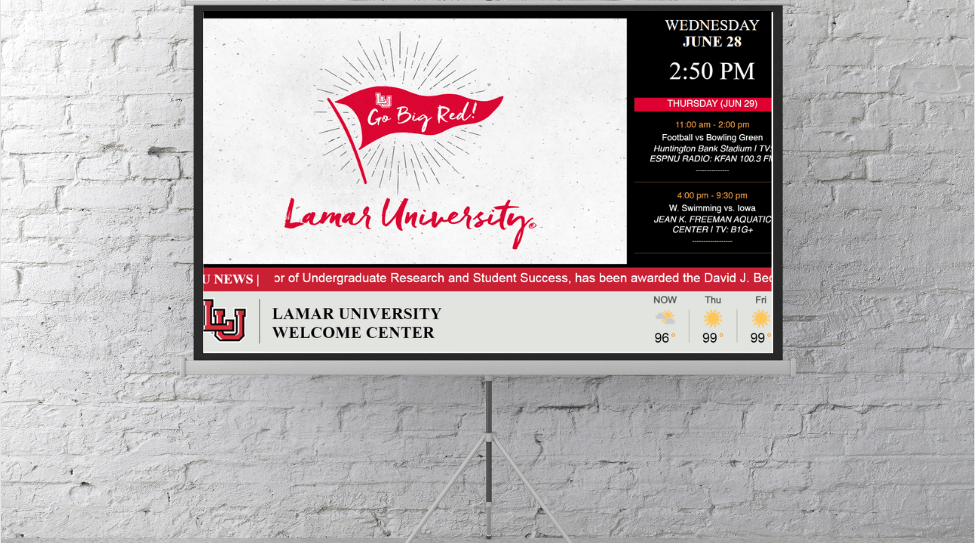
Let’s take a look at the client example shown to the right: Lamar University is effectively using a ticker integration to contribute to the overall messaging of the sign. This sign can be found in the welcome center building on campus, so the content revolves around new students, events, sports, and more. Considering welcome centers on college campuses are usually busy areas, including ESPN and NBC tickers provide easy ways to keep students entertained while they wait for their appointments. Being from a big D1 school, ESPN keeps students informed on NCAA sports, their school’s standing, and other athletics. Meanwhile, the NBC feed informs students about things going on in their area, state, or country that could affect their day-to-day lives while alleviating the boredom of waiting. Request a free demo with REACH Media Network today!
[/vc_column_text][/vc_column][/vc_row]
Effortlessly Display Current Events & News
Whether reporting on your local area or expanding to a nationwide scope, RSS news feeds inform your audience of relevant information. These updates can help with travel, event planning, data analysis, and other marketing objectives. Once an RSS feed is set up, it will sync from the source(s) you chose. Start your free demo with REACH Media Network today to experience easy SSO data integration, RSS feed synchronization, powerful content management software, and more.
Really Simple Syndication (RSS), Simplified
RSS stands for “Really Simple Syndication,” converting news and update information into XML format. This allows for computer systems to easily read and present the information, even being able to automatically pull updates in real time. When you’re ready to implement an RSS feed, you’ll have the ability to set up your own feed integration or pull from one of REACH Media Network’s prebuilt options. The prebuilt integrations are meant for quick news content that still allows for extensive customization to fit your branding guidelines. These templates pull from some of the most popular news sources and encompass entertainment, sports, politics, and other news sectors. Here, we will show you how to set up one of these feeds.
After logging in to REACH Media Network’s CMS, you’ll need to create a zone for your RSS ticker. Typically, tickers are long, thin segments of your layout as they only need to reserve space for scrolling text. You can edit the length and width to fit your needs, but we typically recommend starting with a 100×100 block and stretching it from there. Next, you’ll want to head to the “Ticker Settings” and make sure your settings are arranged according to your needs. For most settings, you’ll want to keep the feed type to “URL” unless you are setting up a social media integration. Keep the Node Type to “Title” and set the Parsing Sugar to “none,” as those are reserved for National Weather Alerts.
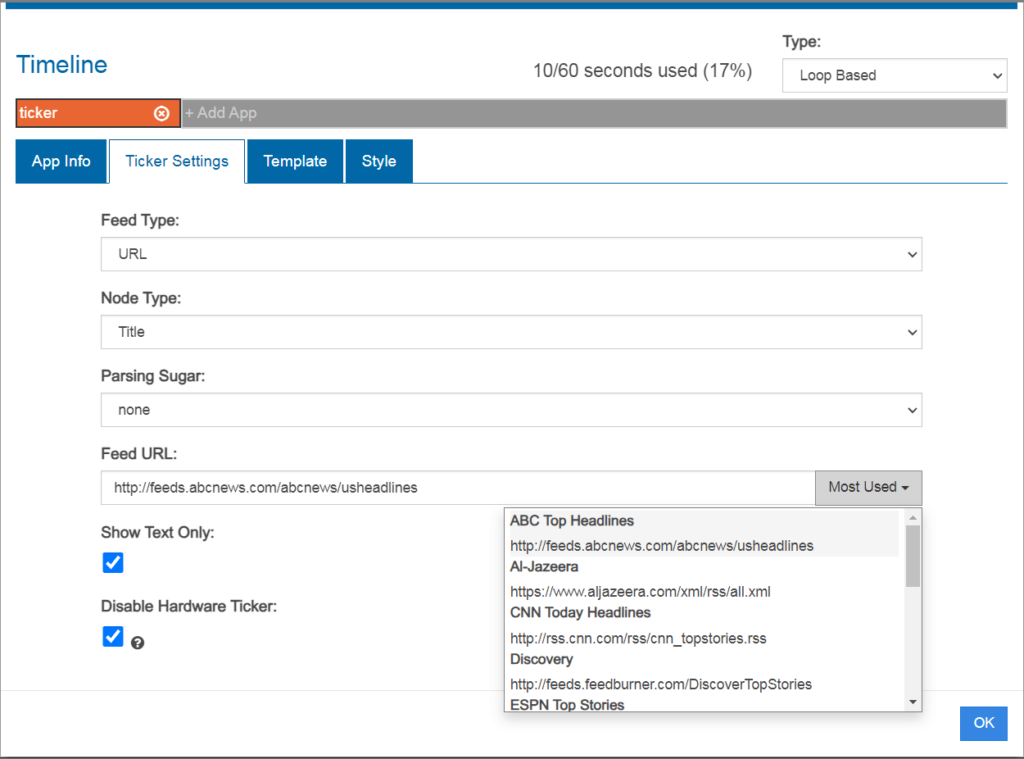
You’ll be able to head down to the Feed URL to select your news source. Off to the right-hand side, you will notice a button labeled “Most Used.” This will open a menu of our most used RSS feeds and news sources. Scrolling through will allow you to pick an outlet that fits your communication objectives. Once you choose your source, you can choose whether or not to show text only. Typically, RSS feeds will only display text, you it may be easier for you to leave it on. We will not disable the hardware ticker, as this only comes into play if you are creating a custom template for future use. From here, you can head over to the “Template” tag to choose how the feed will appear on the screen. By default, it will scroll from right to left for easy reading. However, there are a variety of options ranging from fading, static, and vertical scrolling options. Lastly, you can change the look of your ticker by heading to the final “Style” tab. From here, you can customize aspects of the ticker so that it looks exactly how you need it to. Once everything is set to your preference, clicking “Ok” will save your settings and display them in real time on your assigned screens.
Setting up a Custom RSS Feed
Of course, you may find that none of the provided options with REACH Media Network fit your requirements. Thankfully, the flexibility of digital signage for seasonal marketing allows you to create your own integrations as well. The process is much the same as before, even down to the settings. However, the difference comes in how much freedom you have in selecting what news is presented. When setting up a custom RSS feed, there is a vast library of resources out there to choose from. We recommend Googling a news source or topic that interests you with the phrase “rss feed” at the end of the search term.
If you have a web developer or other tech specialist available, they would also be a good resource for scoping out these integrations. Once everything set up properly, these custom feeds will appear in much the same way as the prebuilt templates. You will even be able to access the same scrolling templates and CSS customization options as before.
Effectively Utilizing RSS Feeds for Signage
Now that your feeds are all built, it is important to understand how to use them effectively. While tickers are meant to be unobtrusive to the rest of your content, that does not mean that they aren’t a critical part of your layout design! To use tickers effectively, we recommend placing them at the bottom or top of your layout designs. This gives them the prominent space needed to be seen and scroll through content without getting in the way of your other announcements. Additionally, you’ll want to include these tickers on displays that fit the theme. For example, it may be inappropriate to place a ticker talking about sports news on a screen dedicated to presenting corporate metrics. As a result, it’s important to consider the objective and physical location of your displays as well.
Let’s take a look at the client example shown to the right: Lamar University is effectively using a ticker integration to contribute to the overall messaging of the sign. This sign can be found in the welcome center building on campus, so the content revolves around new students, events, sports, and more. Considering welcome centers on college campuses are usually busy areas, including ESPN and NBC tickers provide easy ways to keep students entertained while they wait for their appointments. Being from a big D1 school, ESPN keeps students informed on NCAA sports, their school’s standing, and other athletics. Meanwhile, the NBC feed informs students about things going on in their area, state, or country that could affect their day-to-day lives while alleviating the boredom of waiting. Request a free demo with REACH Media Network today!